
A SCORM package can work perfectly in an authoring tool and still fail when you upload it to an LMS. It might not launch, record completion, save a score, or resume from the right place when a learner returns.
That’s why it’s worth testing a SCORM package before you publish it for learners or send it to a client.
There are three useful ways to do this:
- Test it in your LMS to see how the package behaves in the actual learning environment.
- Use SCORM Cloud to check tracking and troubleshoot SCORM communication.
- Use a browser-based SCORM tester or validator to identify package and runtime issues before uploading it to an LMS.
I’ll walk through each method and explain what you should check during testing.
1. In your LMS
I know that when it comes to testing SCORM, many of you still prefer doing it the old way. Upload the e-learning to your LMS, change the user role to Student, and give the module a few attempts before checking your grades in the gradebook.
To be honest, there’s nothing wrong with that. If you have permanent access to a test LMS account that neither your boss nor your client will be looking at, that’s a perfect choice for testing SCORM.
Furthermore, all LMSs are different, and their SCORM implementations vary too, so this approach is the only one that can guarantee that your module is going to work in your LMS.
However, this method has a serious downside to it – only a small percentage of LMSs provide access to debugging options; that is, tools that can be used to see what’s going on behind the SCORM API iron curtain. As it turns out, there’s an easy way to solve this problem, no matter what LMS you’re using.
If you want to see what’s happening between a SCORM package and your LMS while the course is running, SCOverseer can help.
SCOverseer is a free browser bookmarklet from Cybercussion. It inspects live SCORM runtime communication, so you can check statuses, suspend data, and other information without installing a separate desktop application.
SCOverseer
SCOverseer is a bookmarklet. A bookmarklet is a program that looks just like any other bookmark in your browser. But, it contains a link to a JavaScript snippet instead of a link to a webpage. When you click it, this bookmark launches its internal code and starts an application in your browser.
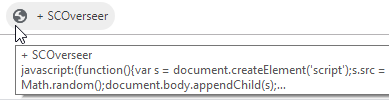
So, what does it do? As the vendor’s page says, it’s a “free tool that will allow you to check the status of a Shareable Content Object (SCO), that is actively running on an LMS.”
Basically, it captures the communication between your SCORM package and your LMS and shows you recommendations on what can be improved, along with some generic information like SCORM version and current suspend data usage. What’s also important is that it supports both SCORM 1.2 and 2004.
How to get started
- Enable the bookmark bar in your browser’s settings.
- Go to the SCOverseer website and drag the SCOverseer+ bookmark from the page to your bookmark bar.
- Sign in to your LMS account and launch the module you want to be tested.
- Click on the SCOverseer bookmark in the window where the SCORM module is displayed.
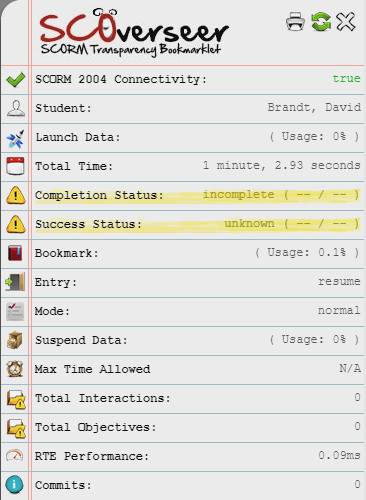
How to test
Take your module and try to break it. Look at the Completion and Success statuses in the SCOverseer window. You should see the status in the SCOverseer window change to Failed or Incomplete or both depending on the SCORM version you’re using.
After you do that, restart the module and try to pass it. Now you should check if the Passed/Complete statuses are awarded when you meet the Success/Completion criteria. If something doesn’t look right in the statuses you’re seeing in SCOverseer, that probably means you need to go back to your authoring solution and review your module’s completion settings.
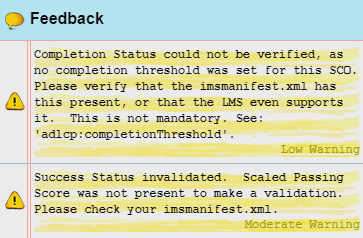
SCOverseer can also flag potential issues in the SCORM communication it observes. This is especially useful when you’re trying to understand whether unexpected completion, success, or tracking behaviour comes from the course itself or from the way the LMS handles SCORM.
Be aware, however, that it’s not as useful for troubleshooting SCORM 1.2, so don’t rely on it alone when testing that version.
Pros
- Free SCORM tester
- Doesn’t need to be installed
- Supports most popular web browsers
- Supports both SCORM 1.2 and 2004
- Allows you to debug both your SCORM module and your LMS
Cons
- Launching 3rd-party JavaScript code in a production environment raises security concerns
- Only works when a module is launched in an LMS
- More useful for troubleshooting than for a simple “does this course work?” check
2. SCORM Cloud
You’ve probably heard about the next product on our list. Over the years, SCORM Cloud by Rustici software has become extremely popular in the e-learning community.
Instructional designers like it, because it’s reliable and has a wide range of debugging options which they can use to find any possible Achilles heels in their SCORM files. LMS support teams like it, because if a SCORM file doesn’t properly report to their LMS, they can always send the author to test it on SCORM Cloud before generating a ticket.
Let’s find out for ourselves how to get started with this service and what’s so good about it.
How to get started
- Start a free trial on this page.
- Now you can upload your first SCORM file to the service. (NOTE: The free Trial currently allows up to 3 courses and 5 GB of content, with 10 resettable registrations.)
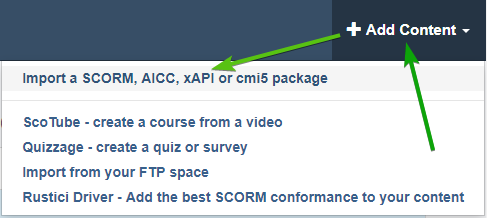
- Click +Add Content at the top right, then select Import a SCORM, AICC, xAPI or cmi5 package.
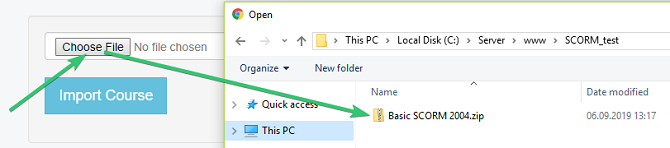
Click Choose File and locate the SCORM package on your PC.
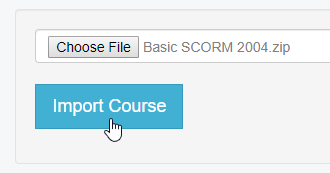
Click Import Course.
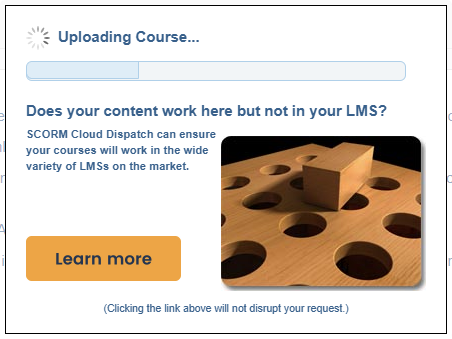
Wait until the uploading process is finished, and then you can move on to testing.
After your module is uploaded, you will see the Course Sandbox page. The Course Sandbox is where the current status for the module is displayed, and where you can track all the attempts you’ve made on the module.
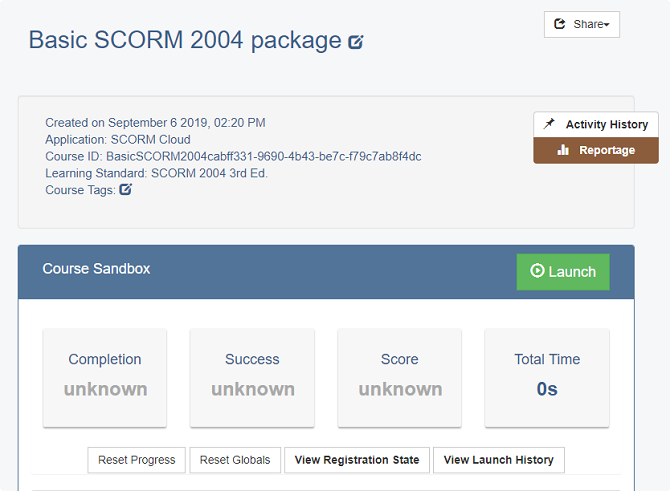
As you can see, your newly uploaded SCORM file doesn’t have any stats. Click Launch to view your module and start a new attempt.
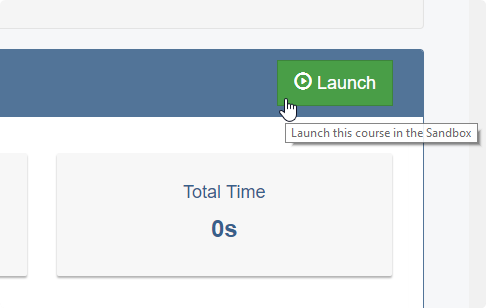
SCORM Cloud uses popups to display courses by default, so you’ll need to allow it to open your module in a popup window.
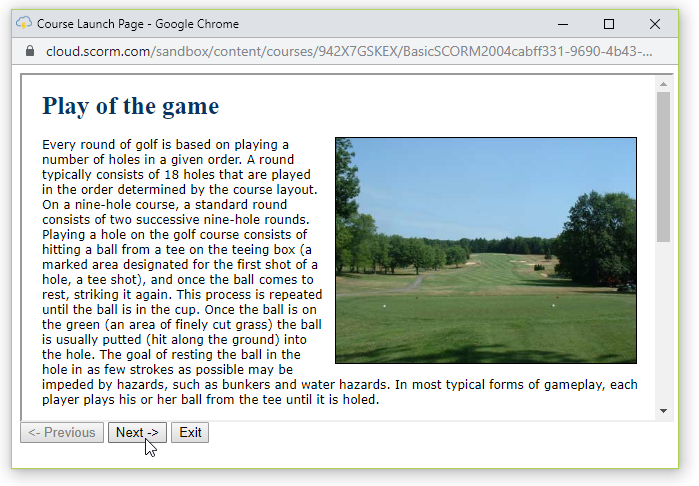
When you see your module displayed in a new window, you can start testing.
Finally, after you finish this attempt, click Finish in your module, or simply close the tab with the course. This will bring you back to the Course Sandbox.
How to test
When you test a SCORM package in SCORM Cloud, you have to perform a minimum of two attempts.
The BAD attempt
The first one should be a “bad” attempt, where you don’t meet the passing/completion criteria you set for the module; for example, viewing all the slides but failing the quiz. The actual criteria will depend on what settings you selected when you published the module.
After you finish the “bad” attempt and return to the Course Sandbox, look at your statuses. You should see either Incomplete, Failed, or both.
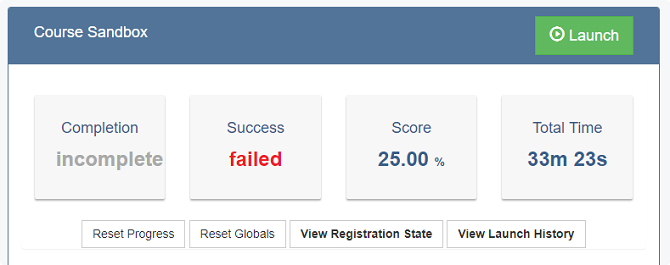
If the statuses don’t match what you expect, check the course’s publishing and completion settings first. If those are correct, investigate how the LMS is handling the SCORM data.
The GOOD attempt
After you review the “bad” attempt’s success and completion statuses, you need to click Launch again to begin your “good” attempt. This time, you’ll try to meet the Success/Completion criteria and do everything the right way: view all slides, pass quizzes, etc.
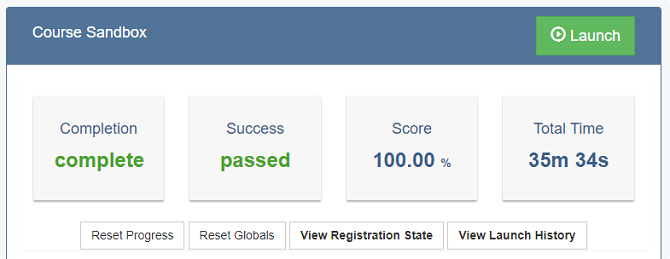
Combining test results from both attempts should give you a pretty good understanding of your SCORM module’s inner workings.
Debug Logs
The thing I love the most about SCORM Cloud is that it lets me access detailed debug Logs for each attempt I make. This data provides a very important insight into what statements are being sent by my SCORM file and how they are handled by the “LMS” which is represented by SCORM Cloud.
To access the debug log for the most recent attempt, you need to click on it in the corresponding section of the Course Sandbox section:
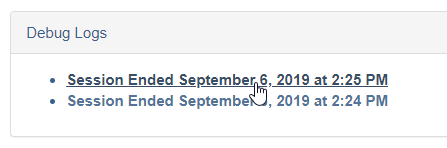
Here’s an example of a debug log:
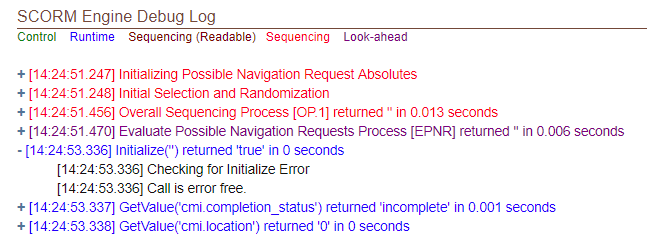
By clicking on the plus icon (+) next to any SCORM API call, you can check for errors. If you see a red line in the log, that means there was an error with that particular call, so it’s worth examining more closely.
If you’re testing a SCORM 1.2 package, these are some of the most common API calls you’ll see in the debug log:
- LMSInitialize(): Establishes a connection between the SCORM package and the “LMS” (in this case, SCORM Cloud)
- LMSGetValue( ‘valuename’ ): SCORM file tries to get a value from the “LMS”
- LMSSetValue( ‘valuename’, ‘value’ ): Sends a value to the “LMS”
- LMSCommit(): Saves a value sent via LMSSetValue() in the “LMS”
- LMSFinish(): Closes the connection between the SCORM file and the “LMS”
SCORM 2004 uses similar calls without the LMS prefix, such as Initialize(), GetValue(), SetValue(), Commit(), and Terminate().
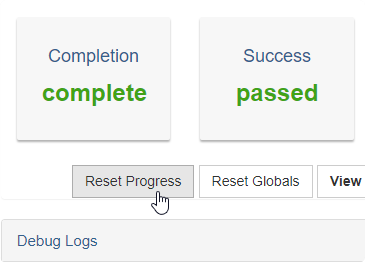
Finally, when you need to reset all attempts for a module, use the Reset button to start from scratch:
Pros
- Free Trial is not time-limited and is sufficient for occasional SCORM testing
- Cloud-based (fast and reliable, can be used on any OS)
- Supports SCORM 1.2/2004, AICC, xAPI, cmi5
- Provides access to detailed debug logs
- Vendor is known for great customer support
Cons
- The free Trial is limited to 3 courses, 5 GB of content, and 10 resettable registrations
- Can only help debug your SCORM module, not your LMS
- Interface may be a bit too complicated for casual users
3. With a Browser-Based SCORM Tester or Validator
Modern browser-based SCORM testing tools give you another option when you don’t want to upload a package to your LMS just to check whether it works.
If you only need to open or preview a package rather than troubleshoot its tracking, see my comparison of SCORM players.
Depending on the tool, you can either validate the structure of the SCORM package or actually launch the course and inspect its SCORM communication.
SCORM validation vs. runtime testing
These are not quite the same thing.
A SCORM validator checks the package itself. For example, it can verify that:
imsmanifest.xmlexists at the root of the ZIP package and is valid;- file names and references match exactly, including letter case;
- the SCORM version is identified correctly;
- launch files exist;
- files referenced in the manifest are actually included in the package;
- resources and dependencies are structured correctly.
This is useful when an LMS rejects a package during import or the course won’t launch.
A SCORM runtime tester goes a step further. It launches the course in a simulated LMS environment and lets you check what the package reports while a learner uses it, including completion, scores, bookmarking, and SCORM API calls.
Browser-based tools are particularly convenient for a quick first check because they don’t require you to create test learners or add content to your production LMS.
However, passing a validator or browser-based test doesn’t guarantee that the course will behave identically in every LMS. Always run a final test in the platform where the course will actually be delivered.
Pros
- Fast way to check a SCORM package before uploading it to an LMS
- No test LMS account required
- Some tools can identify manifest and packaging errors immediately
- Runtime testers can help diagnose completion, score, and bookmarking issues
- Modern tools work directly in current web browsers
Cons
- Validation alone doesn’t test actual learner tracking
- A simulated SCORM environment may behave differently from your LMS
- Features and limits vary between testing tools
SCORM package testing checklist
Before publishing a SCORM course, check that:
- the package imports into the LMS without errors;
- the course launches correctly;
- incomplete and complete statuses are recorded properly;
- pass and fail statuses work as expected;
- quiz scores reach the LMS;
- learners can leave and resume from the correct point;
- progress is retained after closing the browser;
- failed and successful attempts produce different results;
- restarting or resetting the course behaves correctly;
- reports in the LMS contain the expected completion and score data;
- an interrupted attempt resumes correctly after the learner exits partway through the course;
- the course works in the browsers and devices your learners actually use.
If the package fails in both a neutral SCORM testing environment and your LMS, the problem is likely in the package or its publishing settings. If it works in the tester but fails in your LMS, investigate the LMS configuration or SCORM implementation first.
Final Thoughts
There isn’t one SCORM testing method that covers every problem. A browser-based validator is useful for catching packaging errors, SCORM Cloud gives you detailed runtime information, and testing in your actual LMS confirms how the course will behave for learners.
For important courses, I recommend using at least two environments: a neutral SCORM tester such as SCORM Cloud and the LMS where the course will ultimately be delivered.






David,
Thanks for the write up on SCOverseer, I saw some referrals coming thru. I am starting up https://angular.scobot.net which mainly uses the SCOBot Runtime APIs (SCORM 1.2 & 2004). This is currently in beta so I’d love some folks to beat it up or let me know if they want features I haven’t gotten to yet.
Thanks again!
Hi,
I have a SCORM 1.2 package given by 3rd party developer. Of the 22 SCORMs he had developed, 14 are working and remaining 8 aren’t. The Zip files would not load on our LMS or on scorm cloud. The vendor has shut shop and is no more extending any support.
Any idea on how to identify the issue in the zip file and fix it so that it can be tested?
Hello! Thanks for the question. Troubleshooting SCORM compatibility issues can be challenging. You can try to check the manifest file of the problematic SCORM package. (It’s usually an XML file named “imsmanifest.xml” or something similar. Look for any inconsistencies, missing files, or incorrect references within this file) You can also inspect the browser’s developer console for JavaScript errors. These errors can provide valuable clues about what’s going wrong. Finally, you should also ensure that your LMS supports the specific SCORM version used by the packages (in this case, SCORM 1.2). Sometimes, compatibility issues arise when an LMS doesn’t fully support the chosen SCORM version.
HI David,
I don’t seem to be able to find the ‘SCORM 2004 Wrap Test’ package by Claude Ostyn. Could you advise please where can I download it from.
Thanks.
I am the former owner of JCA Solutions and used to have this posted on the site. I have started a new site and posted the SCORM Wrap Test at http://www.elearningllc.com/downloads/scormwraptest.zip. Send me an email if you have any questions.
Thanks so much for this information David.
You just saved me a lot of time and money by introducing me to the SCORM Cloud where I was able to test a zip file (to find it didn’t contain any courses).
Really appreciate your article.
Glad to help you. You’re welcome!